 Social Media Engine Help
Use Calendar to plan dated posts and Overview to scan board status beside upcoming dates. Both views help you see when work is due.
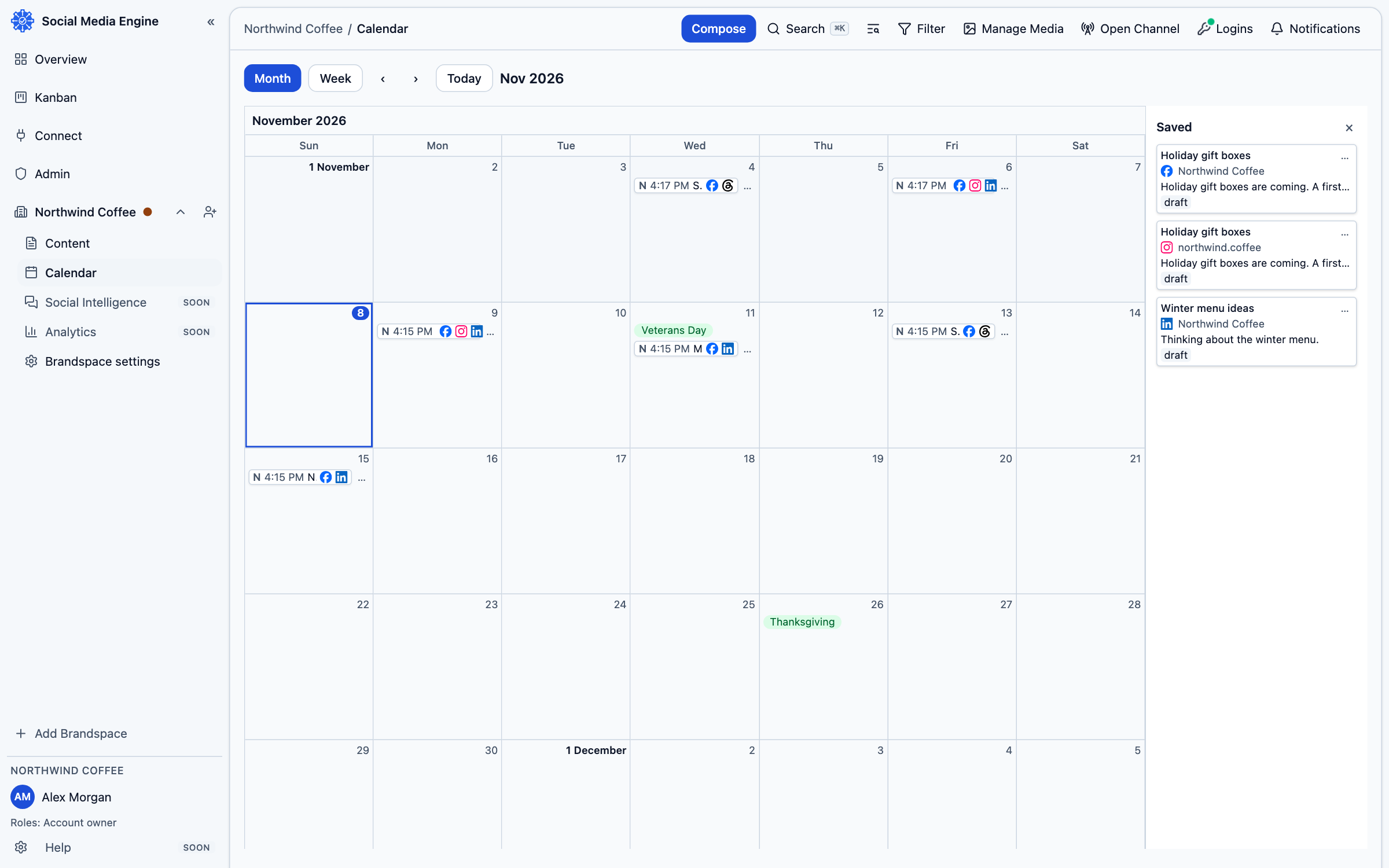
Work from Calendar
Calendar shows dated posts in each brand’s own time zone. You can move a post to another date by dragging it or using Move to date and time…. Moving a post keeps its time of day and approval. A post assigned to a full day can be refused. Calendar also supports dated day notes, and the saved tray holds drafts without dates.
- Open Calendar from the sidebar.
- Choose the week or month view that suits your planning.
- Select a day’s Post action to start a post for that date.
- Drag a post to a new date, or open its menu and choose Move to date and time….
- Check the brand time zone shown on the page.
Scan Overview
The Overview puts the Kanban work board next to two weeks of calendar dates. This helps you notice both the post’s current state and its planned day. Open a card to inspect or act on it.
- Open Overview from the sidebar.
- Review the board columns and nearby calendar dates.
- Use the card’s menu to open a post or available action.